Showing posts with label display. Show all posts

Saturday, August 15, 2015

How to change computer display and text color?

Now in this topic will show you how to change color and text color of your computer.

1. First of all click on start option from taskbar and then click on control panel for example see below picture.
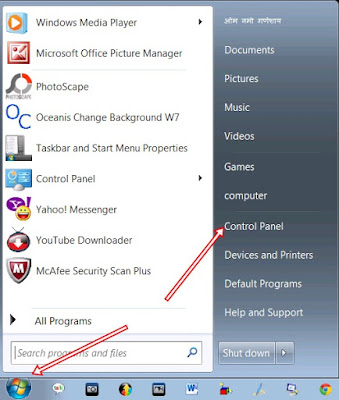


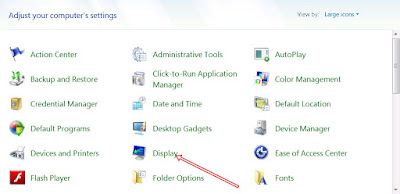
2.After that click on display as below given picture.


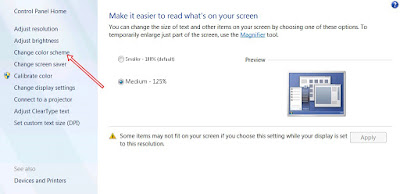
3.Now after clicking on display new file will open in the left side click on change color scheme for example look at the below picture


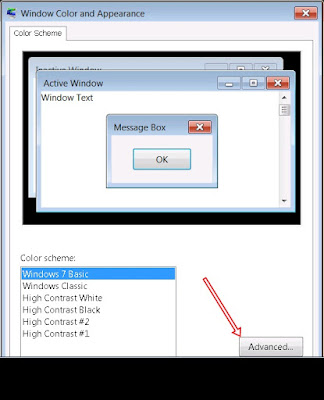
4.Now after clicking on change color scheme new popup windows will open as show in the below picture if you want to change only windows color click on any one link in the given and the click on apply. Now your windows color will change and also text want to change the text click on advance and open windows as show in the below picture.


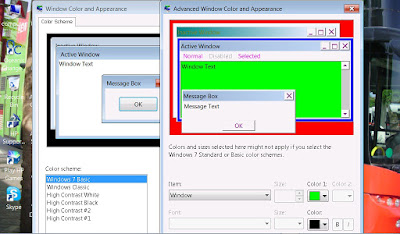
5.Now after opening the new window all the the display color text link etc will appear  in drop down now you can able to design your computer as you like.

6. Now after finishing all the color design click on apply now see your windows color will change enjoying yourself  for windows colour changing Thank you. 
+

How to change colour of your windows or taskbar in Windows 7.

Hello friend do you want to change the Colour of Taskbar and Windows than I have an idea just follow this simple steps given below and change your themes of your computer to make it better.!
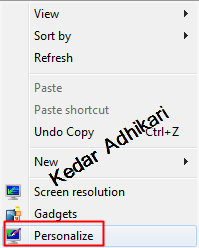
1. First of all right click on desktop and click on "Personalize"

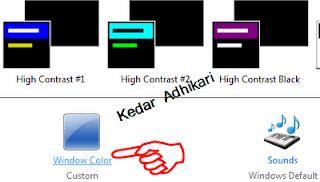
2.After that your window will open now from the bottom of your opened window click on Window colour.


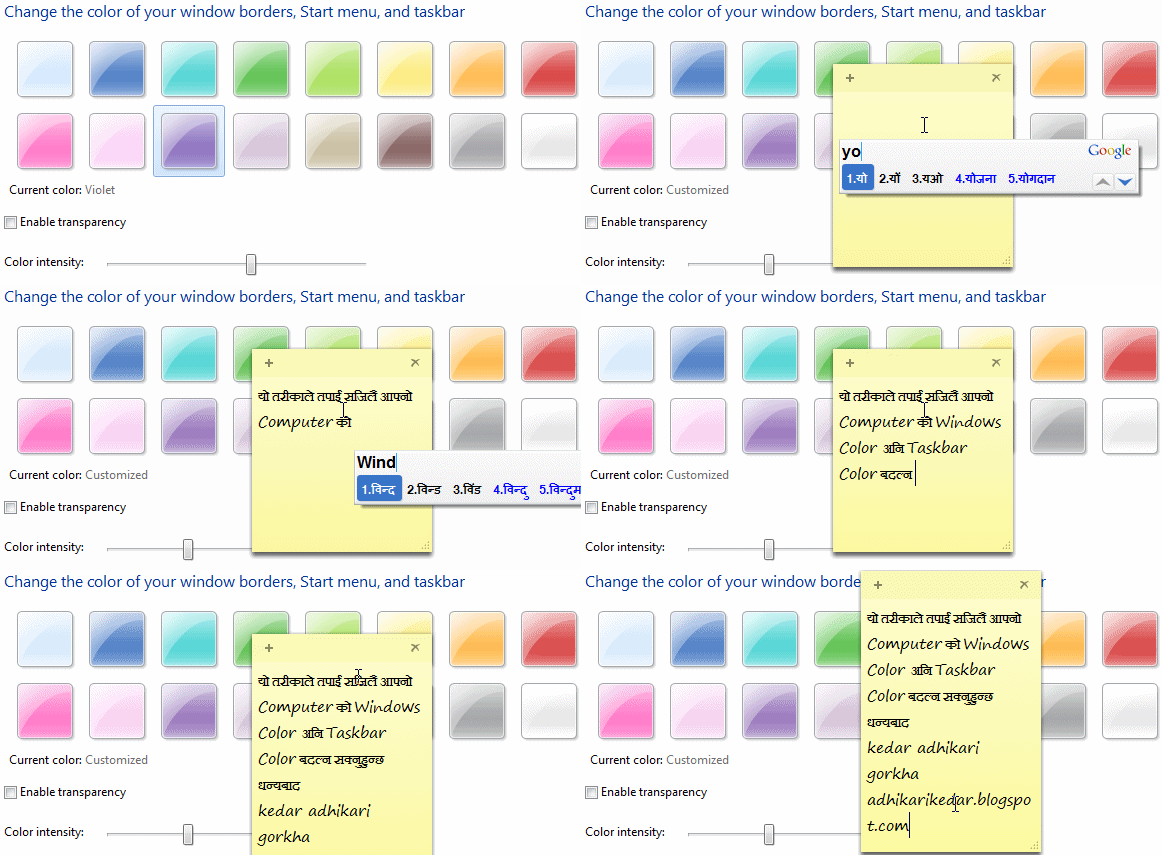
3.Now in opened new window change the colour of your Window or Taskbar as you like.

from the tips given above you can easily able to change the colour of your Window and Taskbar to look attractive.
+

How to put gadgets on your desktop?

          Do you want to put some gadgets on your desktop if you want to do this.And want to maker your computer desktop colorful. The  desktop the you showing below is of my so if you want to change your desktop like this than follow the simple rule given below.


1.First of all click on start menu from task bar and type gadgets and press enter button from your keyboard or Right click on desktop and click on Gadgets option as given below.


2.After clicking on Gadgets now right click on the  Gadgets which you want to put on your desktop and click on add option. After that your your selected gadgets will automatically appears on the desktop now you can able to  set the place of the gadgets as you like.


3. If you don't like the gadgets of your computer that you can able to download gadgets directly from internet. For desktop search the link Cool computer gadgets game download for Microsoft  type the gadgets on google and select the gadgets you wish to apply for you computer.

Thank you.
+

Thursday, August 6, 2015

How To Change Windows XP Desktop Icons Into a tidy Small List View

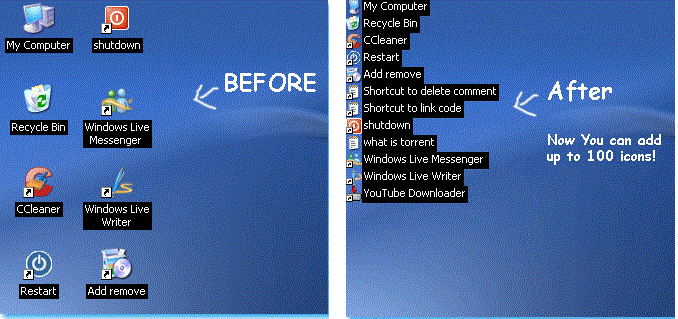
If you are bored of that large bulky icons at your desktop? And want to change the size of icons at your desktop? Or Can you show up to 100 icons at your desktop without slowing down your PC and without distorting the beauty of your desktop? Online Computer Institute is sure you will be excited to know how to do that. You have the option of changing the icon size in Vista, Windows 7 but unfortunately you don’t have it in XP. But now you don’t need to worry anymore!

With a small utility called Deskview you can convert XP’s large desktop icons into tiny/small ones giving it a tidy list view. You can see  here are the screen shots,

First you need to download Deskview from the link below and extract it using winrar software if you have not winrar software download it from here
Download DesktopView
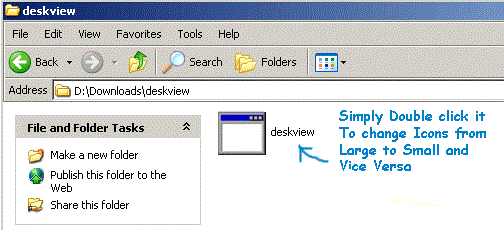
After extraction, simply double click the deskview icon to change icons from large to small or from small to large

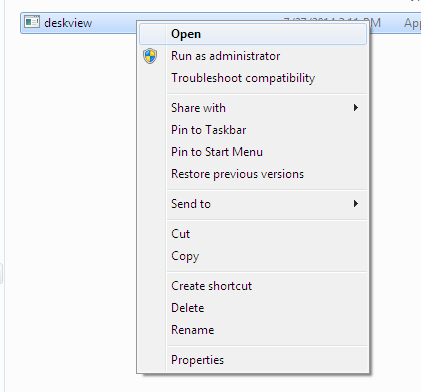
Right click in to desktopview and Open or Run as administrator
do not forget i mean if your operating system is windows 7 don't worry this software 100% working also for your operating system of widnows 7


Warning: If you want to recover before your desktop view use same this idea

How do you like this method hope you enjoy.

+