Showing posts with label TP Link. Show all posts

Saturday, August 15, 2015

How to Configuration ADSL TP-Link router Internet

Today i'm going to show you how to configure your router using routing mode through the following steps. I assume that all necessary components are connected and working correctly. please follow the bellow instruction

1. Open your browser (any) and type 192.168.1.1 into the address bar. This is the default IP address of the TP-Link router.
2. A new window will open asking you to enter username and password.
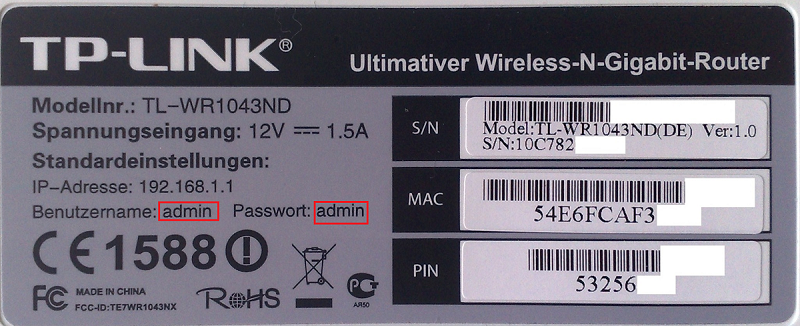
 There is asked for user name and password please don't afraid because the user name and password is you will be see there back side of Router 

The defaults settings is  are here:
User Name : admin
Password : admin
Enter the above information and log in.
3. For first time users, Quick Start wizard may appear. Discard this and click on "Interface Setup".
After The following screen will appear.
4. There are Virtual Circuits from 0-7. Activate only PVC0 and deactivate others.
Again, return to PVC0 options from drop-down menu. Choose PPPoA/PPPoE in the ISP section.

6. Enter the information as shown in the image below except username and password. Here, you need to enter username and password provided by Nepal Telecom.
Save the settings.
This is it. You can now use  ADSL internet. Remember that, if connection is successful the Internet bulb on your router will be ON. Otherwise, there is still some problems. Let me know if this tutorial worked for you or not..
+

How To Find Wifi Password TP Link Router

Whatever is the cause, we need to find our Wi-Fi password. But remember, this is not a guide on how to steal someone’s Wi-Fi password. It’s about how to know your own Wi-Fi internet’s password when you know what is password of your Wi-Fi device.
The Method is only for TP Link Router

1. First Open the any browser of internet from the computer only from where is have used the via TP Link router
2. Now type the Addrerss 192.168.1.1 in to browser of address bar & hit Enter button from keyboard layout
For all TP Link router IP Address is same 192.168.1.1
3. Now type the password and username there when opened small box if you don't know user name and password but don't worry User name and Password also same for all used TP Link router
   User Name: admin
   Password:   admin
Now press "Log In" Button
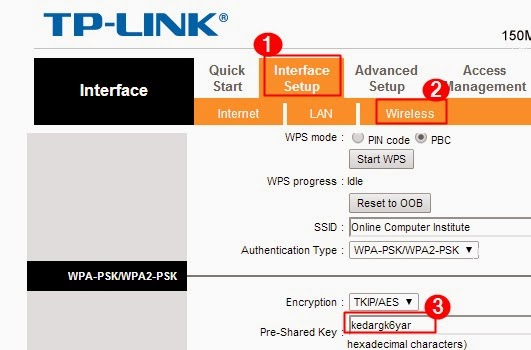
4. Now will open Interface of TP Link Router Click in to "Interface Setup" and click in to "Wireless"
Now scroll mouse and go to below and see "Pre-Shared Key"

When you'll see the Pre-shared key that is your or friend's computer is Wifi password that is all Done!
       

+

Thursday, August 6, 2015

How to Get Your Router if You Do Not Know Its Username/Password TP Link

If you are forget Username and Password of your router and want to change router settings? And you do not know username or password? But don't worry some people cannot access their router through a web browser, because they either forgot a password/username or do not have a router manual at all. Well, there is a little trick that can help you access your router with full Super User rights using by CMD prompt so lets be see bellow our instruction how to access the username and password of the router

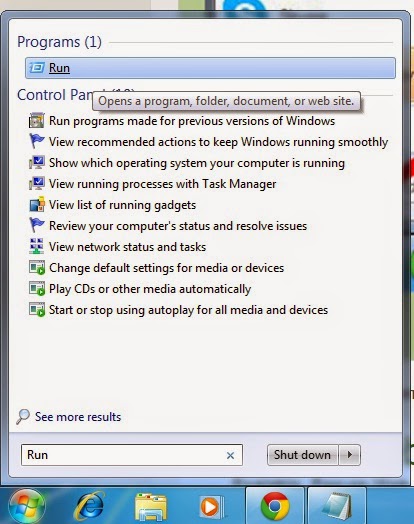
1. First go to "START" on bottom left corner of the screen and the name of "Run" then enter it from the keyboard or Press the shortcut key "Win logo+R" top of keyboard


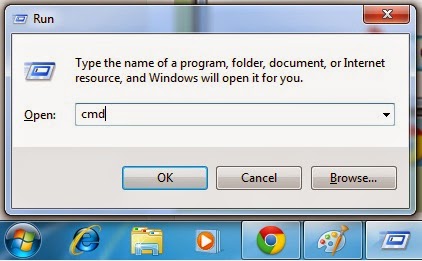
2. Now type the "cmd" in Run command (without quotes) and hit Enter from keyboard key


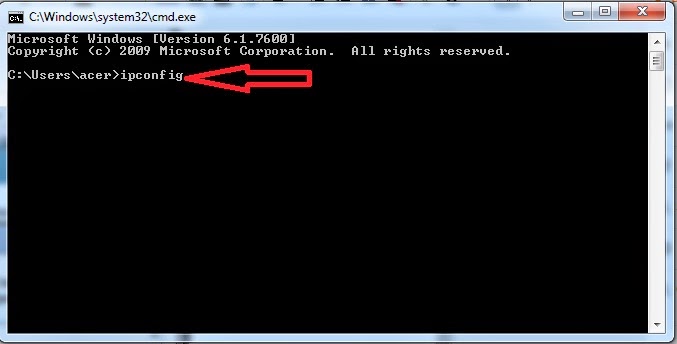
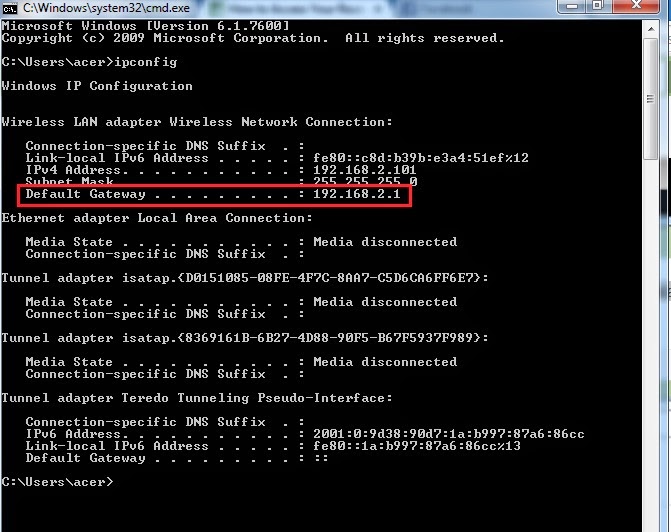
3. When a Command Prompt opens up, type in "ipconfig" (without quotes) hit enter. and wait a moment


4. Locate your Default Gateway under Ethernet Adapter (Local Area Connection), mark and copy that address or remember it


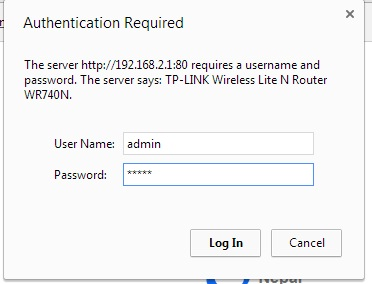
5. Go to your web browser and paste or type the previously copied address in the URL search bar, for eample like this "192.168.2.2" and hit Enter. It will asks you for Username and Password.


6. For Username try these inputs: "username", "admin" and "Password", "admin" (without quotes).
 

7. We have a another way also for access IP address, Username, & Password you can see back side of router
 

Congratulations! You now should have a full access to your Router/Modem. 
+