Showing posts with label Hardware. Show all posts

Saturday, August 15, 2015

Learn more About Graphic card


•Essentially some RAM (framebuffer) and some digital-to-analogue circuitry (RAMDAC) –latter only required for CRTs
•(Today usually also have powerful GPU for 3D)
•Framebuffer holds 2-D array of pixels: picture elements.
•Various resolutions(640x480, 1280x1024, etc) and color depths:8-bit (LUT), 16-bit (RGB=555), 24-bit (RGB=888), 32-bit (RGBA=888)
•Memory requirement = x ×y ×depth
•e.g. 1280x1024 @ 32bpp needs 5,120KB for screen
•=> full-screen 50Hz video requires 250 MBytes/s(or 2Gbit/s!)
+

Sunday, August 2, 2015

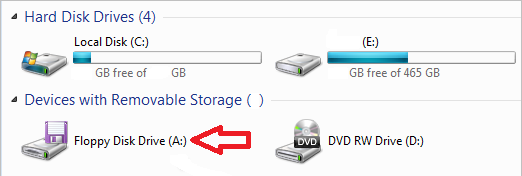
How to Disable Floppy Drive in Any Windows

Do you want to disable Floppy Disk Drive from your system ?
I don't need floppy disk but also showing this drive in to the computer and sometime trouble me i don't like this and i want to remove or disable then i had do it so if you want to also hide this system from your system please follow the below instruction.

1. First open the your computer which one have Floppy Disk Drive.
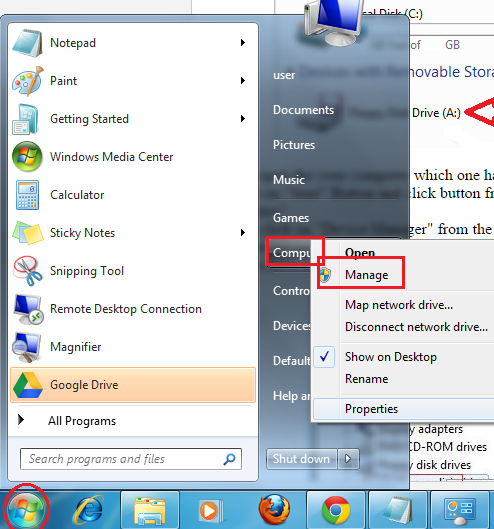
2. Click on "Start" Button and click right button from mouse on "My Computer" or "Computer" then click "Manage" button

3. Now click on "Device Manager" from the left panel
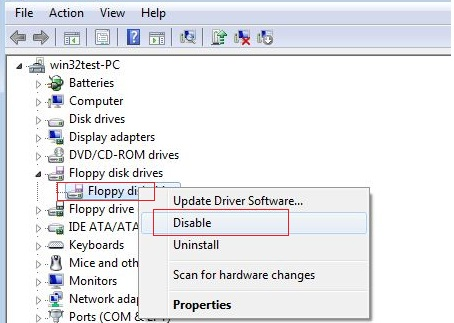
4. & you see under your computer's name, look for the category named "Floppy disk drives"
5. If you have found it  Right-click on the "Floppy disk drive" and select "Disable".

That's it! You're done. No more annoying waits if you accidentally click it. And no more waste of screen real estate. Enjoy!
Now go to the inside of computer system and from there is no anyone floppy drive
Note:. For all windows do this same tricks nothing different with different version of OS 
+

Sunday, December 28, 2014

What is chipset?

             The features of a motherboard can easily be determined by looking its chipset. Selecting a chipset eliminates many decisions you have to make in selecting a motherboard. There are many different chipsets on the market, Intel and AMD chipsets being amongst the best and most popular.

   
1.         AGP and PCI Support
2.         USB Support
3.         Power Management
4.         Input/Output Management
5.         IDE Support
6.         Real Time Clock
Chipset,Hardware
All chipsets have certain features in common, for example:

          But there are differences, such as what CPU they accept, how many memory slots they have and how much memory they can take. So you see it all depends what you want to do with your computer and how much money you want to spend. Some motherboards available offer all input output as ‘onboard’ features, including video, sound and games connectors.

        Whatever ‘onboard’ features you may desire though, always think of the possibility and expansion card based device offers you in case of a device failure and remember that you cannot replace or upgrade any components that come as ‘onboard features’. However, if you need to, it is possible to set the jumpers or the BIOS in order to disable the defect device and replace it with a plug-in card. Depending on your purse it certainly seems a good idea to go for a cheaper type motherboard with many onboard features, but at the end of the day you will probably pay heavily for your decision once it’s time to upgrade. The motherboard is generally thought to be the most important part of a computer. And yes, it is. However, the chipset on the motherboard is the most important part of the board itself as it defines almost everything about the system.

         The chipset controls the system and it capabilities. It is the hub of all data transfer. If is a series of chips on the motherboard, easily identified as the largest chips on the board with exception of the CPU. Chip sets are integrated, meaning they are soldered onto the board and are not upgradeable without buying a whole new motherboard. All data must go through the chipset. All components talk to the CPU through the chipset. To make order out of all this data, the chipset makes use of the DMA controller and the bus controller.

      Since chipsets are so important and have to know how to communicate with all components, they must be designed for your configuration and CPU. The chipset maker needs to keep up with BIOS and memory makers, since all of these parts work together and the chipset is the hub of it all. Chipsets replace the large number of chips that used to crowd a motherboard. Chipsets now take longer for to manufacture than old ones used to.
+

Motherboard and Its types.


Motherboard,Hardware
The most important component of any computer is the Motherboard. The Motherboard is the largest board of the computer system. It is also called System Board. The motherboard is located on the left side of PC’s case on the bottom. It is usually green sheet of fiberglass with many chips, resistors, the heat of the computer i.e. power supply and contains many other organs of the computer system. It also contains the memory i.e. ROM and RAM and many other supporting logic circuits to make the complete computer work as a proper system. Instead of “motherboard” IBM refers to its as “System Board” or “Planer Board” but sometimes other manufacturer refers to it as “logic Board”. It accepts the CPU, memory, various plug-in peripherals, connectors and supporting circuitry. The motherboard defines the type of system by defining the type of processors it accepts, by the chipset features and by its architecture.

            IBM decided that there should be used two different types of technologies, which were being used to make personal computer. They are:
Bus Based Computer.
Single Board computers.


 Bus Based Computer

1.    Address Bus
2.    Data Bus
3.    Control Bus

Address Bus:
    Group of lines carrying the addressing information used to describe the memory location to where the data is being transferred.
                                                                                                                       Bus Based Computer
Data Bus:
A set of lines used to carry the data.

Control Bus:
I is used for carrying a set of control signals that control the flow of data.

    These all buses are provided on these boards. The main advantage of this type of board is that, whenever any part fails, the board on which that part is located can be removed and replaced with a working board, very easily and so it makes the maintenance of the system very easy. In these types of computers, different parts of a system such as main processor, memory, display card etc. are put on separate cards and connected to the main system bus through expansion slots.

Single Board Based Computers

          
The other approach in the computer design is a single board based systems. These types of boards contain all the chips and circuits to make a proper system. These types of boards are easy to manufacture and design and it is less expensive than bus based type of computers. The video games computers and home computers and generally this type of system. In these systems, we cannot connect any other additional device; all the devices are available on motherboard itself.
                                                                                                                   Single Board Based Computers  

These bus-based computers have used the main board as the backbone of the computer system. This bus board contains number of buses through which the data can be sent from one place to another and it also contains the number of slots onto which we can connect various different devices. Mainly the expansion cards are connected onto the expansion slots. In this type ob bus based computer there are three buses. These are:

                   There is no option or have in no scope of upgrading or adding any new device introduced in the market to these systems. In these types of systems if and of the components fails, the user will have to discard the complete circuit board means that we cannot repair or maintenance any to the component.

       When the IBM first introduced the system in the market, they have decided that they will use the
single board based computers. This board contains almost all the important parts of a computer such as main processor, memory, support chips etc. But all the same time it has provided the expansion slots (i.e. Bus based system) on the main board to connect new additional device to  the system. Also, some common I/O devices such as display, serial/parallel interface, storage devices etc. are connected to the basic system through these expansion slots. So, this design gives the popularity to the whole world and it makes the systems more reliable and at the same times the slots on the motherboards provide facility for future upgrade and maintenance of the system and it makes so easy as compared to single board based systems.
               As already mentioned on the CASE page, the main major architecture these days is ATX. Make sure that you buy the motherboard architecture that you case and power supply supports, or that you buy the right case for your motherboard. AT and ATX motherboards for example have different power connectors, different sizes, different mount holes, etc, but most importantly, a different back panel.
    Alongside a variety of connectors, a modern domestic ATX motherboard normally features:

·    One AGP (Accelerated Graphics Port) Slot.
·    Five or six PCI (Peripheral Component Interconnect) Slots
·    Maybe one or two older EISA (Enhanced Industrial Standard Architecture) Slots
·    Two to four SIMM  or DIMM (Memory Modules) sockets
·    One CPU (Central Processing Unit) Socket or Slot
·    One parallel Port (LPT1)
·    Two Serial Port (COM & COM2)
·    Two USB (Universal Serial Bus) connectors
·    One Floppy Drive Port
·    Two EIDE (Enhanced Integrated Drive Electronics) Sockets
·    One PS/2 (Personal Integrated Drive Electronics) Sockets
·    One PS/2 mouse connector
Depending on the make, some motherboards also feature:
·    Onboard Sound
·    One Joystick/Game Port
·    Onboard Video
Motherboards that are aimed at the server market might even feature more than one CPU socket/slot, onboard SCSI and more memory sockets, network adapters, etc.

    Selecting a good motherboard is of almost importance when deciding for a system. Be very selective and make sure that the board of your choice supports the kind of system you want to build. It has to accommodate the type and speed of your Processor, your preferred system bus type, your preferred type and amount of memory and any other features or onboard facilities you want. When buying your motherboard, always make sure you go for a major brand, it really pays off! Also make sure you get your motherboard manual, without which you are stranded come the time of your next CPU upgrade. The manual tells you about the features and the BIOS of the board and how to set the jumpers, switches and BIOS settings.
    In both the AT and ATX designs, the computer components included in the motherboard are:
·    Chipset
·    Microprocessor (CPU)
·    RAM
·    ROM
·    Math Co-processor
·    System Clock
·    Keyboard connector
·    Mouse connector
·    DIP switches
·    Jumpers
·    Bus Architectures
·    Expansion Slots
·    Different types of Adapters

+

All External Command of MS-Dos.

External command
A MS-DOS command that is not included in command.com. External commands are commonly external either because they require large requirements or are not commonly used commands. Below are examples of MS-DOS and Windows command line external commands currently listed in the Computer Hope database.

Many of the external commands are located in the Windows\system32 or Winnt\system32 directories. If you need to locate the external file in order to delete it, rename it or replace it, you can also find the file through MS-DOS
 
Some external DOS command
CHKDSK:-
This command is used to check for error on disk drive.
Syntax: C:\>chkdsk


Format:-
This command is used to format for disk drive
Syntax: C:\>format drive name
Eg, C:\>forma d:/q


Attrib:-
This command is used to change the attributes of file and folder.
-To make file or folder hidden
C:\>Attrib <file or folder name> +h
Eg, C:\>attrib hari.doc +h
-To show hidden file and folder
C:\>attrib <file or folder name> -h
Eg, attrib hari.doc –h
Hole file hidden
Eg, c:\>attrib +r +a +s +h
Hole hidden file show
Eg, C:\>attrib –r –a –s –h

Edit:-
This command is used to edit for file.
Syntax: C:\>edit file name
Eg, C:\>edit ram.doc
Shutdown:-
This command is used to shutdown, restart, logoff the computer.
Shutdown
C:\>shutdown –s –t 60 –c “comment”
Restart
C:\>shutdown –r –t -60
Logoff
C:\>shutdown –L
Net user:-
This command is used to create a new user account.
Syntax: C:\>net user <user name> <password> /add
Eg, C:\>net user hari 12345 /add
+

All Internal Commands of Ms-Dos

 A command that is stored in the system memory and loaded from the command.com. Below are examples of internal commands in MS-DOS and the Windows command line currently listed in the Computer Hope database.

Some internal DOS command

MD:-
Command is used to create a new directory/folder.
  Syntax: c:\>md folder name
Eg,  C:\>md ram

CD:-
Is used to Changes directories.
Syntax:  C:\>cd folder name
Eg, C:\>cd ram

RD:-
Is used to Removes an empty directory.
Syntax: C:\>rd folder name
Eg,  C:\rd ram
REN:-
Rename a file or directory.
Syntax: C:\>ren folder/file name
Eg, C:\>ren ram.doc hari.do
Date:-
This command is used to display current system date. we can also change new date.
Syntax: C:\> date
To change the date type new date.
Time:-
This command is used to display current system time.
Syntax: C:\>time
To change time type new time
Dir:-
This command is used to display files or folder
Syntax: c:\>dir
Copy con:-
This command is used to create new program file(Extension file name)
Some extension file name
Microsoft word = name.doc
Ms power point =    “    .ppt
Photo file =            “     .jpeg, jpg
Sound file =       “     .mps
Photoshop =           “     .psd      etc.

Syntax: C:\>copy con file name
Eg, C:\>copy con ram.doc
Del:-
This command is used to delete files.
Syntax: C:\>del file name
Eg, C:\>del ram.doc
Cls:-
  This command is used to clear for screen.
Eg, C:\>cls

Copy:-
This command is used to copy file.
  Syntax:C:\>copy location the drive
Eg, C:\>copy d:ram

Type:-
This command is used to open file.
Syntax: C:\>type file name
Eg, C:\>type ram.doc
Exit:-
This command is used to exit for dos mode.
Eg, C:\>exit


+

Memory related faults.


I have changed/upgraded the system memory but now nothing works. Are you new memory modules seated correctly? Are you using the right type of memory for you motherboard? Are the memory modules and the sockets clean from dust or fluff? Have you tried a different socket? Also, make sure there is not a limitation to how much memory the motherboard can take.

                  If you have build or upgraded an older type Pentium PC and have used SIMMs, remember that SIMMs have to be use in equal sized pairs!

                  I have change/upgraded the system memory but now get and error message on the screen and the system stops. Depending on you PC, you might have to tell the BIOS that your system memory has changed. Not all BIOSes are plug n' ply. You might also have to change the memory latency timing in the BIOS.
+

Start up related faults.

             The PC doesn't start at all. If the computer doesn't make a sound when you start it up, check that the power lead is connected, the plug at the wall is switched on and that the fuses are OK. If everything checks out OK, in all likelihood the power supply unit (PSU), is to blame. Remember that there may be a power switch at the backside of the PSU itself. Still no luck--> Replace it The computer starts, but just beeps, Something inside is not right Have a look on the scree; is there an error message? if yes, go check the component that is mentioned. if there is nothing on the screen or no display at all, then the nature of the fault lies probably with the graphics card. Try replace it . Check that that monitor is lugged in though, and that the cable is connected properly to the graphics card.

           The computer starts. but nothing comes to life. The computer will not run the POST. Is the power connector from the PSU to the motherboard connected properly? If yes, the main suspects are the system memory and the CPU or any of their settings. Check that the memory modules and the CPU are correctly seated. Does the CPU get the right voltage, frequency and multiplier? A faulty motherboard might also stop the system from running . The only way to check that is to replace the board.

              My system passes the POST but holds with an error message on the screen. The error message itself should indicate where the problem is. Check the component in question. If disk to boot your PC. If it boots OK from the floppy disk, everything is all right. Your hard drive might not be partitioned and /or formatted. If the problem persists when you boot from AL, check all of your cables, connector, expansion cards, etc. One of them is not set up correctly.
+

Modem related faults.


                                          Windows says there is no response from my modem. Make sure your modem is connected properly. If you have an external modem, make sure that it is plugged into the serial port from where it was originally installed. Also make sure that it is switched on. If yes, go to the control panel and double click on MODEMS.Make sure your modem is listed in the box (if it Is't re-install the driver). Select the DIAGNOSTICS tab and select our modem, then click on MORE INFO and wait a few seconds. If you get a lot of information in a new dialog box, the connection to your modem is OK and your modem is working properly. Check your DIAL UP NETWORKING settings (provided by your Internet Service Provider).

              Most other modem related problems are related to windows settings. Modems are very individual devices so calling the technical help line is a common thing to do. But before you make that call, go through this checklist:

    #                  Is your modem connected to the phone line and is the phone line OK?

    #                 How many phones, connectors, dividers are you using?There are limits as to how many  --telephony devices you can connect.

   #                  Has the modem driver been installed correctly and are all the settings OK.

   #                 Consult the troubleshooting or FAQ in your manual.

+

Expansion card related faults.


Most faults related to add on cards can be identified by eliminating that particular device by taking it out of the system and see if the PC works fine without it. If you are not sure which card is causing the problem, take out one card at the time, trying all cards in turn. No luck? Take out all cards except the VGA card. Unless the VGA card itself is faulty (usually produces lots of beeps), the system will produce the error as soon as you re-insert the faulty card. Try them all in turn and reboot. Many card related problems will surface during boot-up. Does the system accept the new device in the first place? Is the system dead with the device? Does the device driver cause any problems or conflicts once the system has booted? The technical help line usually a good place to consult with, but before you do, read the manual again and have a look at the FAQ (Frequently Asked Questions) and the troubleshooting guide of the device in suspect. The Internet is, of course, another source of information you should consider first. Are there any issues? Are new drivers available?
+

Floppy drive related faults.


   My system won't boot from the floppy drive. Check the boot-up swquence in the BIOS. It should be set to boot from drive A: first if you're trying to boot from a floppy. If it is, make sure that the floppy disk you are trying to boot from is OK. Try it on a different computer. If the floppy disk is OK, check the ibbon cable and connector. If they seem OK try a different cable. If it still does not work there might be something wrong with either the floppy drive o even the controller on the motherboard. Connect the floppy drive to the B: connector and change the BIOS accordingly. Still no luck? Try a different floppy drive.

              My floppy won't work and the light stays on all the time. The ribbon cable that connects your floppy drive with the motherboard has been connected the wrong way around. Make sure that the marked line of the ribbon connects to pin 1 on the motherboard and the floppy. Most floppy drives have their pin 1 facing towards the side of the power socket.
+